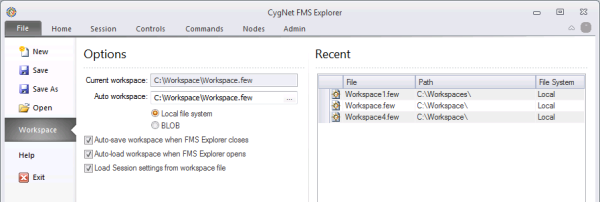
Use the File Menu to save your workspace settings in your system and save the information to defined file locations as Workspace (.few) files. Saving a workspace saves your Site.Service value, window positions, configured command definitions, custom report definitions, and controls with their settings.
The customized workspace files can be saved or loaded automatically when you close or open FMS Explorer, or they can be accessed as desired. Session settings can also optionally be loaded from these workspace files.
See FMS Explorer User Interface and Customizing the View for more information about creating screens and settings for your workspace.
File menu options allow you to manage workspace files and settings in FMS Explorer. The following options are available for managing files.
Note: It is important to Save your current workspace before loading a new or recent workspace. If you load a new or recent workspace, or exit the application, without saving the current workspace, you will lose all unsaved changes.
| Option | Description |
|---|---|
|
New |
Click New to create a new workspace. If you already have a workspace open, you will receive a prompt dialog box to make sure of your choice. Note: Creating a new workspace clears the existing workspace. Save your existing workspace before creating a new workspace, to save existing settings for Session options, controls, reports, and custom-defined commands. |
|
Save |
Click Save to save the current workspace settings. To save settings for an initial workspace, click Save to access the Select File System dialog box. Select a file system, and then click OK to access the Save As dialog box. Browse to select a file location and then click Save to save the file with the same name. |
|
Save As |
Click Save As to access the Select File System dialog box to copy workspace settings with a new name. This will preserve current settings, which you can then edit and save to create your new workspace. Select a file system, and then click OK to access the Save As dialog box. Browse to select a file location, and enter a new file name. Click Save to save the workspace file with the new name. |
|
Open |
Click Open to access the Select File System dialog box to open an existing workspace. Select a file system, and then click OK to access the Open dialog box. Browse to the desired file name. Click Open to open the selected workspace file. |
|
Workspace |
Click Workspace to view workspace options and a list of workspaces that have been accessed recently. |
|
Help |
Click Help to access the Online Help, Client Settings, or view current information about your FMS Explorer client application. |
|
Exit |
Click Exit to exit the workspace and FMS Explorer. Note: When auto-save is not selected, it is important to Save your current workspace before exiting FMS Explorer. If you exit the application without saving the current workspace, you will lose all unsaved changes. |
More:

|
|
|


